
Payment complete
You're all set. Here's PerchDeck.
Your license key is on its way by email. PerchDeck installs from the Microsoft Store, and stays locked until you paste the key into it. Three short steps.
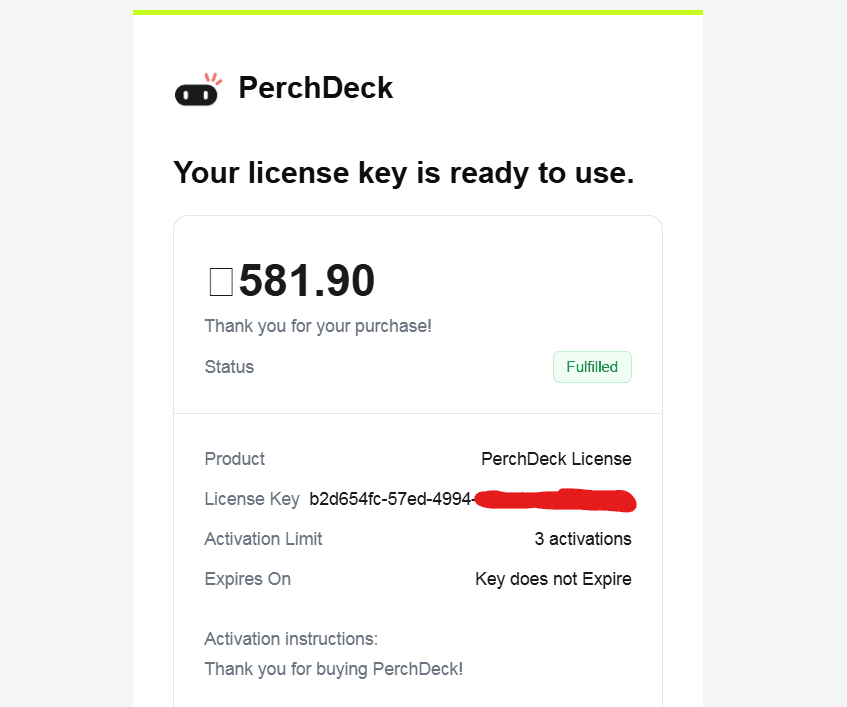
Find your license key
Dodo Payments, who handle the payment, email the key to the address you used at checkout. Open that email and copy the key.
Not there? Check your spam or promotions folder. If it still isn't there, write to us with the email address you paid with.
Install PerchDeck
Get PerchDeck from the Microsoft Store. It needs 64-bit Windows 10 (version 2004 or newer) or Windows 11. When it opens, the notch appears at the top of your screen.
Activate it
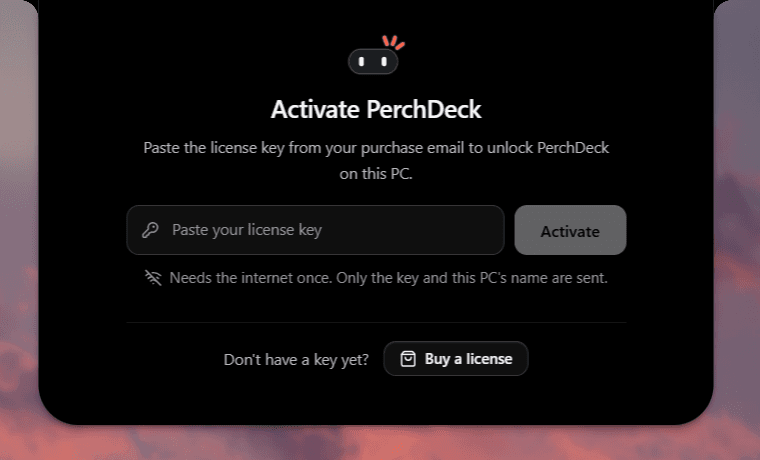
Hover or click the notch. The panel asks for your license key. Paste it and press Activate.
It needs an internet connection once. When it works, PerchDeck restarts itself, unlocked, with every tool ready. Hover the notch to open the dock.
 Microsoft Store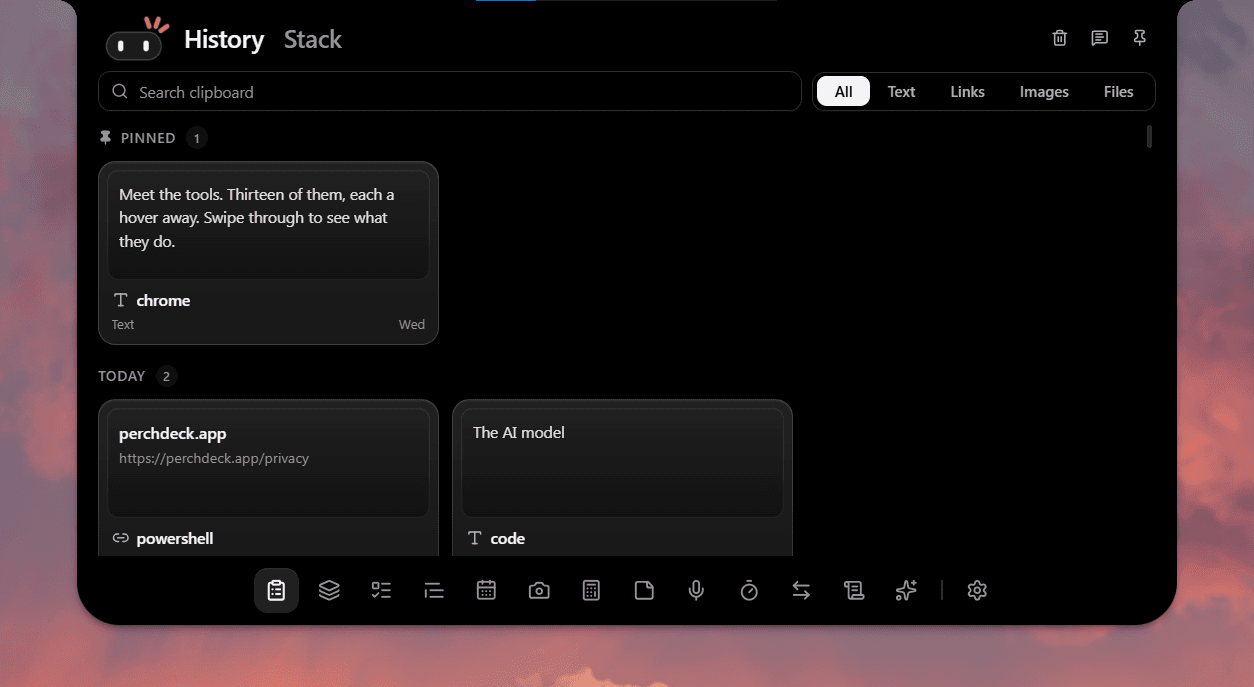
If activation doesn't work
- “That license key isn't valid. Check it for typing mistakes.”
- Copy the key straight from the email and paste it, rather than typing it. Leave out any spaces at either end.
- “This key is already active on every PC it allows.”
- Open Settings > License on one of those PCs, press Deactivate, then activate here.
- “That license key is for a different product, not PerchDeck.”
- Use the key from your PerchDeck purchase email.
- “Couldn't reach the license server.”
- Activation needs an internet connection once. Check your connection and try again.
Moving to a new PC
One key works on up to 3 PCs. Before you reinstall Windows or retire a PC, open Settings > License in PerchDeck and press Deactivate (twice; it needs the internet). That frees its spot, and PerchDeck locks on that PC until you activate it again.
Need a hand?
PerchDeck comes with a 7-day money-back guarantee. Read the refund policy. For anything else, write to support@perchdeck.app with the email address you paid with.